Touch Controller Grounding Points

Touch Controller Grounding Points

Overview

All DISPLAX touch controllers include grounding points that must be used during installation to ensure:
  • Stable touch performance

  • Reduced electrical noise

  • Proper shielding

  • Reliable operation in large installations

Grounding should always be connected to the system ground or chassis ground when available.


General Rule

Most controllers can be grounded using:

  • The mounting holes located on the controller PCB

  • The dedicated grounding connector (if present)

These grounding points are normally located near the corners of the controller board.


Skin Ultra 


Skin Fit 


Skin Dualtouch


Skin Mesh Controllers

For Skin Mesh controllers:

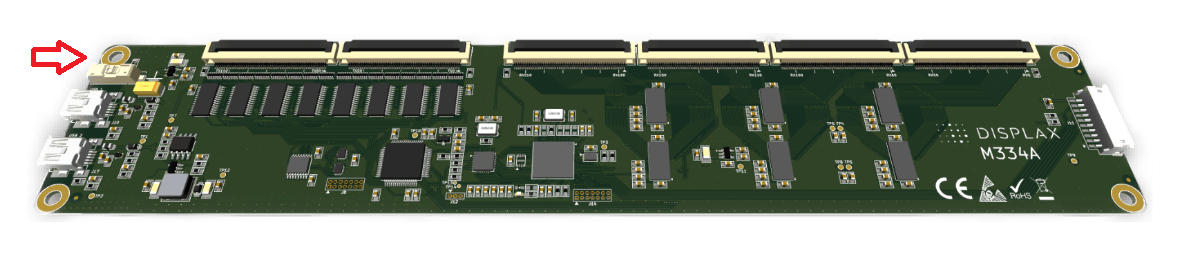
      ⚠ Only the two mounting holes on the connector side can be used as grounding points.


CH130 


CH262


CH334


M334A


M64 | Skin Zeeto


    • Related Articles

    • DISPLAX Skin works with Android

      Overview DISPLAX Skin Ultra, Skin Fit, and Skin Dualtouch work out of the box with Android, with no additional drivers required, provided the Android system meets the necessary requirements. Once connected and supported by the operating system, touch ...
    • Touch Controller not detected in DISPLAX Connect

      Why is my Touch Controller not detected in DISPLAX Connect? There are several common reasons why a Touch Controller may not be detected by your computer or by DISPLAX Connect. Follow the checks below to identify and resolve the issue. Troubleshooting ...
    • DISPLAX Skin Works With Linux

      Can DISPLAX Skin touch sensors be used with Linux? Yes. DISPLAX products work with Linux, provided the operating system includes a HID multitouch driver. DISPLAX products behave like other standard USB HID devices (such as keyboards, mice, or USB ...
    • Rotate or Swap Touch Calibration - Linux

      How can I rotate or swap the X and Y touch coordinates on Linux? On Linux systems—or any operating system that does not support DISPLAX Connect—you may need to manually rotate or swap the touch coordinates. This is common on platforms such as ...
    • Touch Accuracy Offset

      Overview After achieving optimal touch performance and completing calibration, you may notice a touch accuracy offset—where the physical touch position does not match the location shown on the display. This issue is usually caused by display scaling ...